Electronic Team uses cookies to personalize your experience on our website. By continuing to use this site, you agree to our cookie policy. Click here to learn more.

Wireless Print Servers: How to Make Any Printer Wireless

Editorial Team Editorial Team Dec 6, 2025
Almost every tech today can operate with zero cable wires, even printers. With a wireless printer server, a computer can operate a USB-only or wired printer even without being physically connected to it.

Wireless printer servers use Wi-Fi to establish a remote connection between a PC and a printer. This is different from traditional USB print servers that often use an Ethernet connection. Hence, wireless printer servers enable positioning of printers in convenient locations without any cable length constraint.

In this article, we’ll help you spot the best wireless printer server that can help you turn your printer wireless without any additional hardware.
Contents:
  1. Best USB Wireless Print Servers
    • • StarTech.com Wireless N USB Print Server
    • • Xiiaozet LK300W Wireless Print Server
    • • CHEECENT CR202 Wireless Print Server
    • • LOYALTY-SECU LY-MPS-WN01 WiFi Print Server
  2. USB Network Gate as a Wireless USB Print Server Solution
  3. Comparison Table of Wireless Print Servers

Best USB Wireless Print Servers

Upon testing dozens of wireless printer servers online, we curated the top ones based on market relevance, user reception, and key features.

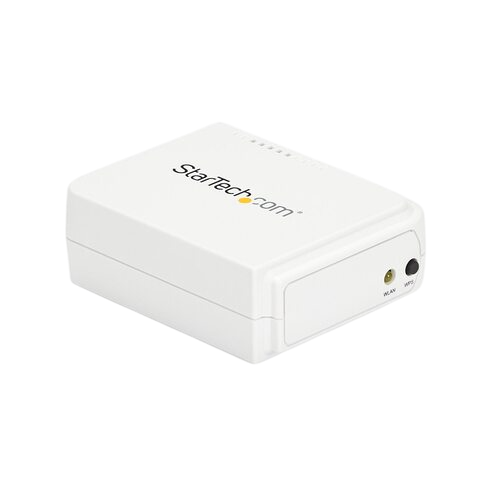
StarTech.com Wireless N USB Print Server

StarTech.com USB Wireless N Network Print Server is a compact and reliable wireless printer server that supports 802.11b/g/n Wi-Fi and 10/100 Mbps Ethernet. It can easily connect USB printers over a network and enable multiple devices to use them.


Price: $86.99


How to Use StarTech Wireless USB Print Server:


  1. Connect the USB printer to the ports of the StarTech print server.
  2. Switch on the printer server. Then, connect it to your Wi-Fi network (via Windows utility’s web interface).
  3. Use DHCP or assign an IP address.
  4. Install the printer drivers on the client computers, then add the printer via TCP/IP port on the client devices.

icon pros Pros:

  • Dual wired/wireless support;
  • Easy to configure;
  • Compatible with multiple OS.

icon cons Cons:

  • Supports only USB 2.0;
  • Limited to 1 printer per device.

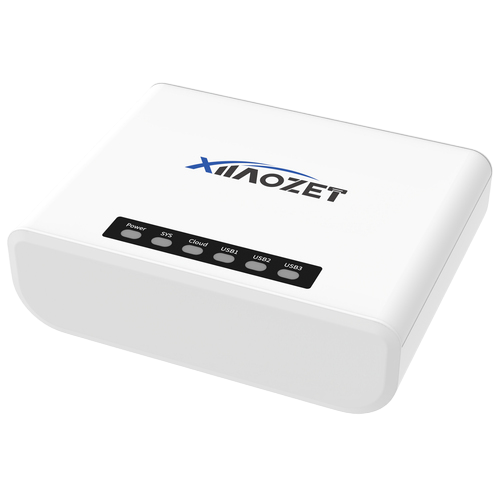
Xiiaozet LK300W Wireless Print Server

This print server works with up to 3 USB printers on the same network. It is a multi-port server recommended for small offices that require wireless access to multiple printers.


Price: $69.99


How to Use Xiiaozet LK300W:


  1. Use the Xiiaozet ports to connect the USB printers (max of 3 printers).
  2. Power on and connect the server to Wi-Fi.
  3. Then, assign an IP address or utilize a DHCP to launch a connection.
  4. Finally, install and add the printer drivers on the client’s machines via the network settings.

icon pros Pros:

  • Multi-printer support;
  • Compatible with IPP and RAW protocols.

icon cons Cons:

  • Slightly more complex setup;
  • Bulky design.

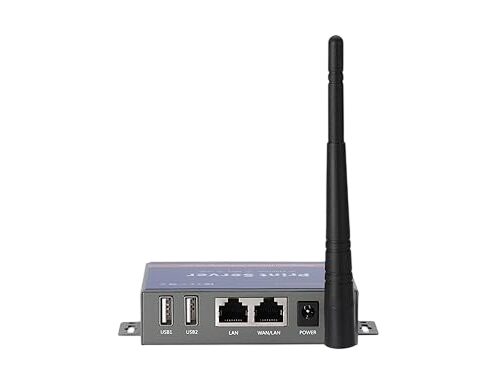
CHEECENT CR202 Wireless Print Server

CHEECENT is a Wi-Fi print server that can support wireless printing via its dual USB port service. As of this writing, this wireless USB print server is compatible with Windows, Linux, and macOS devices.


Price: $59.90


How to Use CHEECENT CR202:


  1. Prepare the USB printers to be used.
  2. Connect the printers to the CHEECENT CR202 server. Use its web interface to connect over a Wi-Fi network.
  3. Proceed with the assignment of DHCP or static IP.
  4. Install the printer drivers on the client machines and add them via TCP/IP settings.

icon pros Pros:

  • Dual printer support;
  • Broad OS compatibility.

icon cons Cons:

  • Interface can be technical for beginners;
  • No wireless encryption on some models.

LOYALTY-SECU LY-MPS-WN01 WiFi Print Server

Loyalty-Secu is a single and portable wireless USB print server that currently supports Windows and Android devices. Hence, it is recommended for home or small office applications.


Price: $105.00


How to Use LOYALTY-SECU LY-MPS-WN01:


  1. Connect your USB printer to the LY-MPS-WN01 wireless printer adapter.
  2. Then, activate the server and connect to Wi-Fi via its built-in setup.
  3. You might also need to configure the network settings via the server’s included application.
  4. Once a connection is ready, proceed to printer driver installation and start wirelessly printing using a remote machine.

icon pros Pros:

  • Supports Android printing;
  • Affordable and portable;

icon cons Cons:

  • Limited to single printer;
  • Basic admin tools.

USB Network Gate as a Wireless USB Print Server Solution

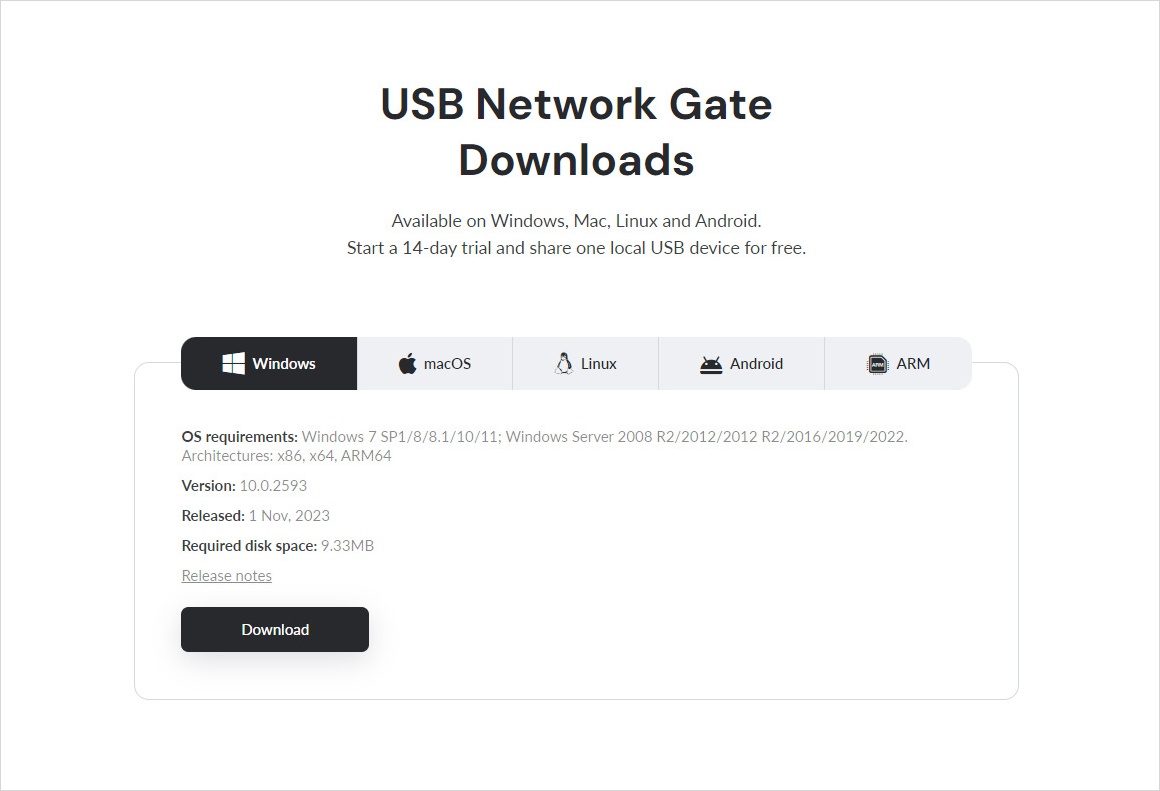
USB Network Gate (UNG) is a wireless network print server that enables seamless sharing of USB devices over Ethernet or Wi-Fi. UNG can transmit data with zero additional hardware and manage any peripherals, such as printers, connected to a remote machine.

Can UNG convert printers into a functional wireless peripheral?

One of UNG’s impressive features is to convert a USB printer into a wireless device. Upon installation on UNG on the local computer (which is attached to the device) as well as the remote machine, you can share the USB printer with any network-connected user in just one click.

How to Connect a USB Printer to Wireless Networks on Multiple Platforms

Versatility is a hallmark of UNG. It can run on various operating systems, such as Windows, macOS, Linux, and Android. UNG can also work smoothly on the older Windows XP, 7, and 10 versions. Across all platforms, UNG offers an intuitive wireless printer server setup that lets you remotely print with ease regardless of the machine’s OS.

Moreover, USB Network Gate can operate on an IP-based network (e.g., your local LAN, Ethernet, or the Internet). It can also redirect USB traffic from within virtual machines or a Remote Desktop (RDP) session.

UNG Key Features:

  • Shares unlimited USB printers (over LAN, WAN, or Internet);
  • Requires zero physical connection or extra print server devices;
  • Supports remote desktop (RDP) sessions and virtual environments;
  • Encrypts sessions and protects secure sharing using high-level passwords;
  • Works on a multi-platform capacity (Windows, macOS, Linux, and Android).

How to Set Up USB Network Gate

UNG is designed with a simple configuration setup so users can easily print documents via USB printers connected wirelessly to their host machines. You can perform the steps below in as fast as 10 minutes.
1
Step 1: Install USB Network Gate on the Host Computer

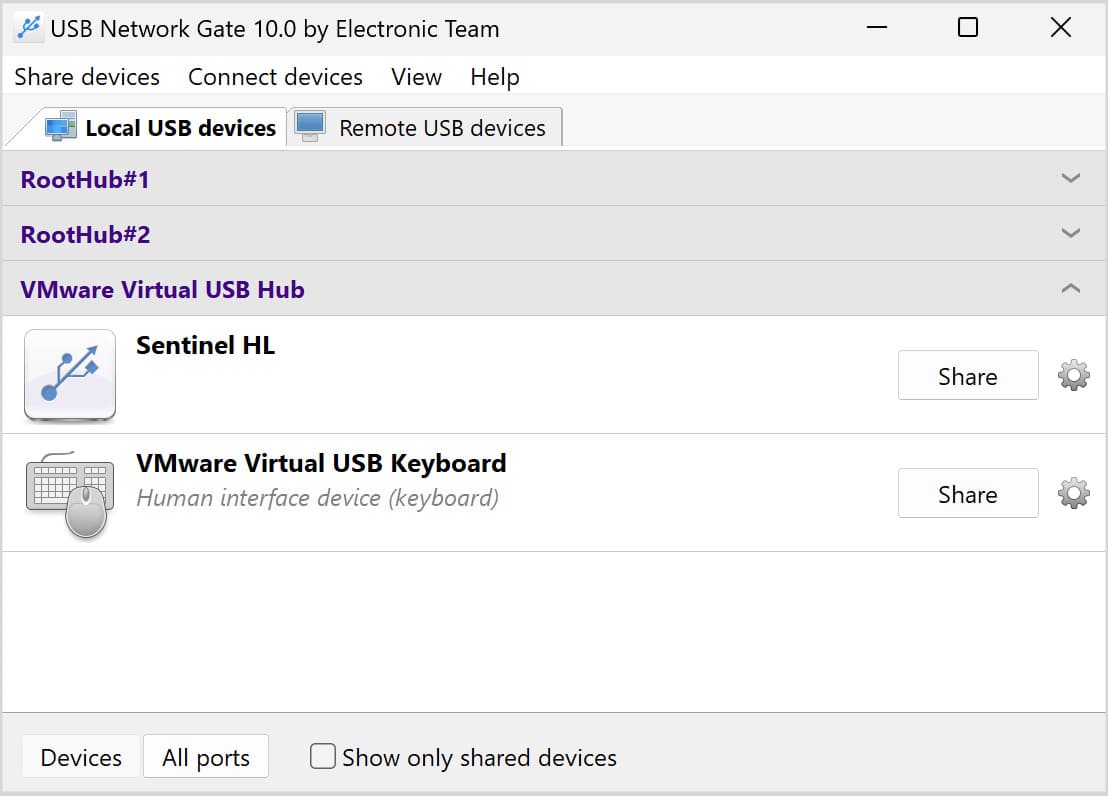
Download and install UNG on the computer connected physically to the USB printer. Afterward, launch the application and locate your connected USB printer in the device list.
 Download and install UNG
2
Step 2: Share the USB Printer

Click the “Share” button next to your printer’s name. You may also set a password and enable encryption for better security.
 Share the USB Printer over WiFi
3
Step 3: Connect the Host Computer to the Wi-Fi Network

Manually connect the host PC to the Wi-Fi network. This connection will let client devices access and use the USB printers.
4
Step 4: Install USB Network Gate on Client Devices

Head into the client computer(s) (or mobile phones) that need to print wirelessly, then install USB Network Gate.
 Install UNG on Client Devices
5
Step 5: Connect to the Shared Printer

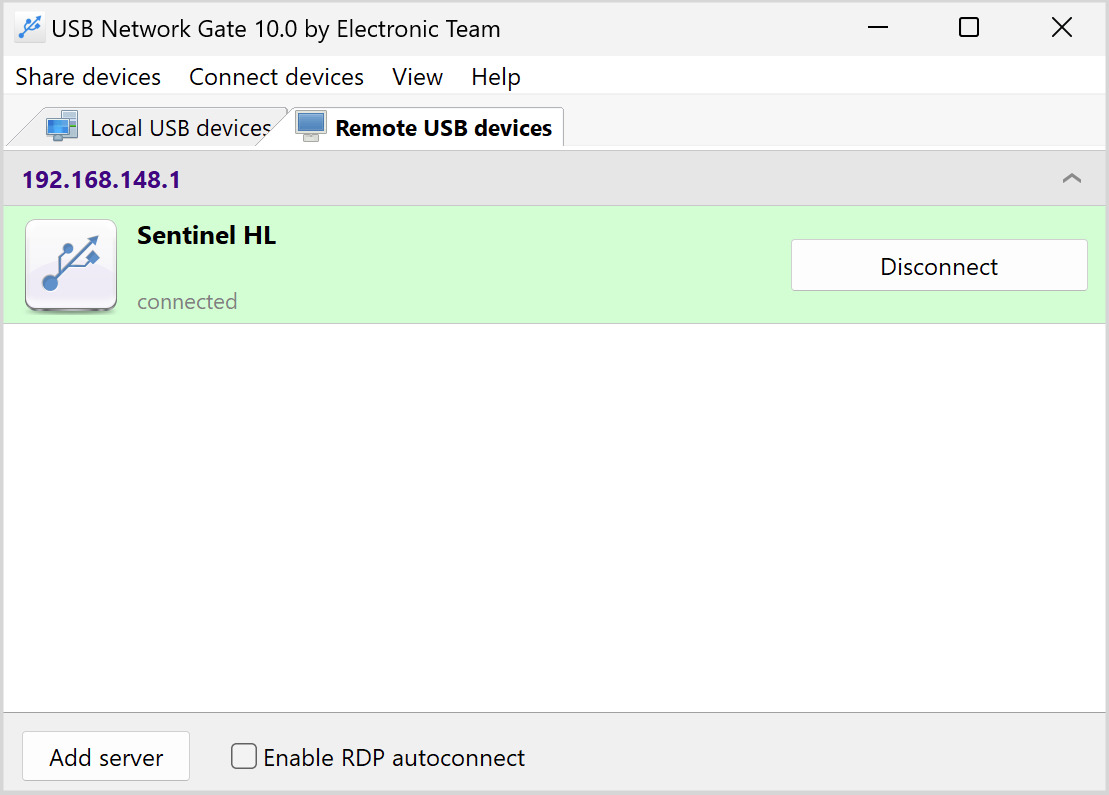
On the client device, open the USB Network Gate. Navigate to the “Remote USB Devices” tab to find the shared printer. Then, click “Connect.” The remote USB printer will now appear as a local printer.
 Connect to the Shared Printer
6
Step 6: Install Printer Drivers on Client Devices

The app might prompt for the installation of the appropriate printer drivers to use a locally connected printer. If the necessary drivers are already installed, you may skip this step.

That’s it, you may now print wirelessly from any application as if the printer is actually plugged into your device.

Comparison Table of Wireless Print Servers

Before you choose a wireless printer adapter, take a closer look at our comparison table presented below. We enumerated again the features, prices, compatibility, and ease of setup of our handpicked wireless print servers. We also put them alongside USB Network Gate to help you consider all critical aspects for optimal selection, tailored to your needs and preferences.
Feature
product logo USB Network Gate
product logo StarTech PM1115UW
product logo Xiiaozet LK300W
product logo CHEECENT CR202
product logo LOYALTY-SECU LY-MPS-WN01
Wireless Protocol
Any (network-based)
802.11b/g/n
802.11b/g/n
802.11b/g/n
802.11b/g/n
USB Ports
Unlimited (software)
1
3
2
1
Price Range
From $159 (license)
$86.99
$69.99
$59.90
$105.00
Setup Complexity
Low
Low
Medium
Medium
Low
Remote (Internet) Printing
Virtual Environment Support
Multi-Printer Support
Unlimited
OS Compatibility
Windows/macOS/
Linux/Android
Windows/macOS
Windows/macOS
Windows/macOS/Linux
Windows/Android

Frequently Asked Questions (FAQs)

A wireless print server is a software or a device that can connect a USB-only printer to a Wi-Fi network for wireless printing.
You need a wireless print server like USB Network Gate to share the printer over Wi-Fi to the client machine.
It depends. Some routers support USB printers directly via built-in print server functions, while some lack this functionality.
Connect your printer to the server, join the print server to your Wi-Fi, and install drivers on client devices.
Prepare a wireless print server app like USB Network Gate that will enable you to share your USB printer over Wi-Fi or Ethernet. This process will not require an additional hardware device.
USB Network Gate
Redirect USB devices over network
14-day Free Trial available
License price starts at $159.95
Available for