Electronic Team uses cookies to personalize your experience on our website. By continuing to use this site, you agree to our cookie policy. Click here to learn more.

USB Print Servers: Easy Network Printing Solutions

Editorial Team Editorial Team Dec 19, 2025
If you want multiple users over a network to access your old USB printer, use a USB print server. This will help you extend the life of the printer or save you from the hassles of a dedicated host system.

This guide covers what a USB print server is, how it works, and the best USB print server solutions, both hardware and software types, to save you time, effort, and money.
Table of contents:


  1. What is a Print Server?
  2. Top USB Print Server Solutions
    • • StarTech 10/100Mbps Ethernet to USB 2.0 Print Server
    • • SEH Printserver ONE
    • • IOGEAR USB 2.0 Print Server Adapter
    • • Digi AnywhereUSB Plus
  3. USB Network Gate: A Software-Based Alternative
  4. Comparison Table of USB Print Server Solutions
  5. Conclusion: Which USB Print Server is Better For You?

What is a Print Server?

A print server is a device or software solution that allows multiple users to access the same printer on a network. Whether your network is wireless or wired, it connects the printer to the local network, instead of requiring you to connect the printer to a PC directly.

Types of print servers:

  • Hardware print servers: These servers are dedicated devices that allow you to connect your USB printer to a network through Ethernet.
  • Wireless Print Servers: These are similar to hardware USB servers but connect USB printers via built-in Wi‑Fi.
  • Print Server Software: These are virtual servers that use software (installed on the computer) to connect your USB printer to the network.

How Does a USB Print Server Work and Why Use One?

A USB print server acts like a bridge between your network and the USB printer. Hardware USB print servers are stand-alone, compact, and lightweight devices that connect a printer via USB or Ethernet. This is different from software‑based or wireless print servers, which require an always-on computer or a Wi-fi connection.

This means you are actually offloading print tasks to a dedicated device. This helps you reduce points of failure, manage drivers better, and free up your PC.
If you want to explore software-based USB network print servers, jump to the USB Network Gate section.

Top USB Print Server Solutions


This section highlights the top USB print server solutions—both hardware and software. We’ll compare four leading hardware print servers (StarTech, SEH, IOGEAR, and Digi) for plug-and-play reliability, and we’ll also cover USB Network Gate as a software-based alternative when you’d rather avoid extra hardware. Use these summaries to quickly choose the approach that best fits your setup, budget, and scalability needs.

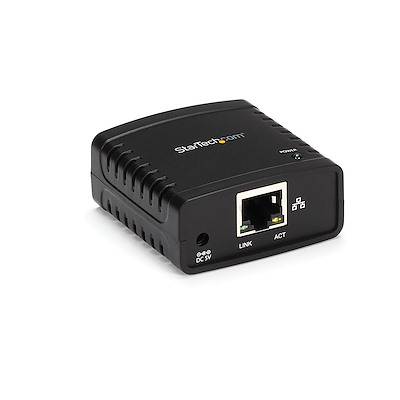
StarTech 10/100Mbps Ethernet to USB 2.0 Print Server

Best for: Home users or small offices that need a wired USB print server.
Pricing: Starts from $62.99


This USB to Ethernet print server is a compact network device that supports printing protocols, such as RAW and LPR. It can connect a USB printer to an Ethernet network with 10/100 Mbps speed. It supports TCP/IP, LPD, and IPP and comes with 1 USB 2.0 port.
This way, multiple users on the same network can access the same USB printer without requiring a host PC. This USB print server is ideal for use in homes and small offices that need a plug-and-play solution at a low cost.


Functionality:


  • Supported printing protocols - LPR and RAW.
  • Shares USB printers through a wired network.


How to set up StarTech Print Server:


  1. Locate the StarTech print server's USB port. Connect your USB printer to the port.
  2. Plug the Ethernet cable from the print server to your network switch or router.
  3. Use the included adapter and switch on the print server.
  4. Go to the StarTech website and download the utility software. Or, insert the provided CD.
  5. Detect the device using the software. If you wish, you can assign it a static IP.
  6. Using the detected IP, add a new TCP/IP port in Windows.
  7. When prompted, install the printer drivers.

Note: For detailed setup instructions, see the official StarTech Community guide:
PM1115Uxx Series — How to add a printer to your computer

icon pros Pros:

  • An Ethernet connection is reliable and safer
  • Configuring a web-based USB print server is easier

icon cons Cons:

  • No wireless support
  • Limited USB version support (USB 2.0)

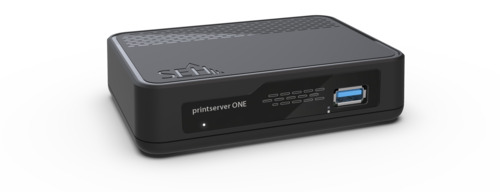
SEH Printserver ONE

Best for: Businesses looking for professional and secure print management.
Pricing: ~$150


This is an enterprise-grade and powerful USB print server. It features a comprehensive management functionality via Group Policy or web console, along with gigabit Ethernet. This standalone device supports advanced security controls for centralized management, IPP, LPD, and high availability. This is an ideal USB printer server solution for large businesses or enterprises that require a scalable and robust network printing system for their extensive printing needs.


Functionality:


  • Converts USB printers to network printers
  • Supports IPv6, SNMP, and print management tools


How to Set Up SEH Printserver ONE:


  1. Use a USB cable to connect the USB printer to the SEH printserver ONE.
  2. Connect the Ethernet cable to the network. Switch on the device.
  3. Detect the print server using the SEH’s "PS Admin" software.
  4. You’ll receive an IP address from your DHCP server. Open the web interface using this address.
  5. To make the connection stable, assign a static IP address.
  6. Use LPR or RAW protocols to install your printer on a computer on the same network.
  7. Configure printer ports. Go to Control Panel > Devices and Printers > Add Printer.

Note: For more detailed information about how to Set Up SEH Printserver ONE, see:
How to Set Up SEH Printserver ONE

icon pros Pros:

  • Enterprise-grade security
  • Long-term support

icon cons Cons:

  • Expensive
  • Home users may find it an overkill

IOGEAR USB 2.0 Print Server Adapter

Best for: Home users and small businesses.
Pricing: $49.95


This is an excellent pick if you’re looking for an easy, plug-and-play USB printer server. It comes with one USB 2.0 port and 10/100 Mbps Ethernet connectivity to print documents over a network. Users can share one USB printer to multiple PCs using its intuitive web interface and easy setup wizard, without a dedicated server.
And the best thing is this USB printer network adapter is budget-friendly, which makes it perfect for light usage scenarios, such as in home offices and small teams.


Functionality:


  • Shares a USB printer over LAN.
  • Comes with basic features.


How to Set Up IOGEAR Print Server Adapter


  1. Plug the USB printer into the IOGEAR print server.
  2. Via Ethernet, plug the device into your router. Switch it on.
  3. Go to the official website and download the software or use the provided CD. Run the IOGEAR setup wizard.
  4. Let the wizard find the print server. Once it does, you will be prompted to install the printer.
  5. If you want, you can assign a static IP. Complete the driver installation.

icon pros Pros:

  • Cost-efficient
  • Compact in design

icon cons Cons:

  • Offers basic admin features
  • Supports limited protocols

Digi AnywhereUSB Plus (USB over IP Hub)

Best for: Enterprises, large IT departments, and virtual environments
Pricing: Starts from $455.00


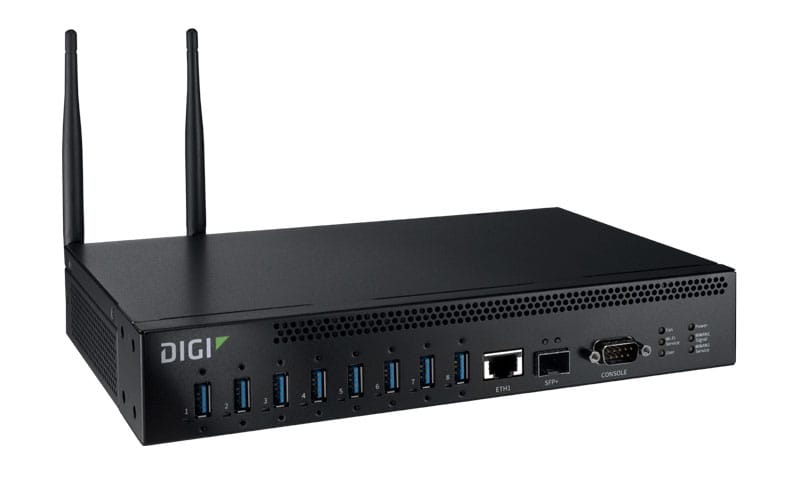
Choose this if you’re looking for a solution that works beyond network printing. This enterprise-grade USB over IP device allows you to share scanners and dongles. It comes with multiple USB ports and can connect from 2 to 24 USB devices (depending on configuration), including printers. It connects devices to your network via gigabit Ethernet.

Using Digi’s client software, this USB creates virtual local USB ports on remote workstations. This simplifies device management and sharing. It’s excellent for use in lab environments or industries that need remote access to multiple USB peripherals.


Functionality:


  • USB-over-IP for printers, dongles, scanners, and more
  • Centralized USB management

How to Set Up Digi AnywhereUSB


  1. Go to the official website of Digi AnywhereUSB. Download and install the software on a host computer.
  2. Via Ethernet, plug in the Digi hub to your network.
  3. Configure network settings and assign ports through the device’s web graphical user interface (GUI).
  4. Plug your USB printer into one of Digi hub’s USB ports.
  5. Connect to the shared USB port through the Digi client from your computer.
  6. Install the printer driver. It will work as if you’ve connected it physically.

icon pros Pros:

  • Powerful features (eg, centralized USB management)
  • Ideal for data centers and large IT departments

icon cons Cons:

  • Expensive
  • IT expertise is required

USB Network Gate: A Software-Based Alternative

Best for:


  • IT administrators responsible for managing printers in virtual environments (such as VMware, Hyper-V, Citrix, etc)
  • Businesses that need USB printer sharing functionality without extra hardware
  • RDP users looking to print documents from remote desktop sessions
  • Organizations that want to centralize their USB printer access without being limited by physical distance
  • Remote teams that need to access USB printers over LAN or the web

If you’re looking for a software-based USB print server, use USB Network Gate. It lets you share your USB printers on a network and also remotely. It supports multiple operating systems, such as Windows, macOS, and Linux, and converts these machines into virtual USB print servers.


Key Features:


How to Set Up USB Network Gate as a USB Print Server

1

Install

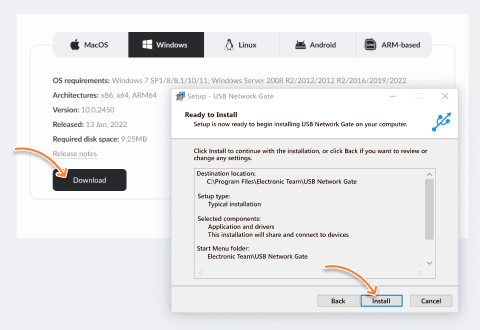
On your PC, install USB Network Gate. Ensure your USB printer is connected to the same PC.
The Download button for the USB Network Gate installer is located on its website. It must be launched and the setup must be completed before the next step.
2

Share

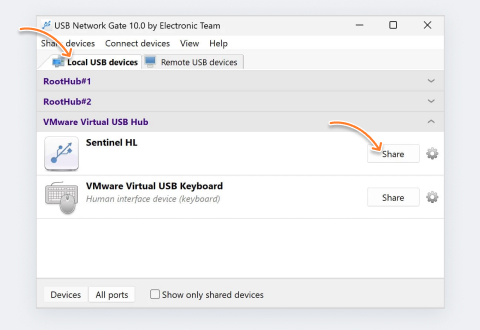
Share the USB printer in the application’s user interface. Enable encryption.
The Local USB Devices tab should be opened by default, but if it isn’t, switch it near the top of the window. The Share buttons are on the right, next to their respective device on the list.
3

Connect

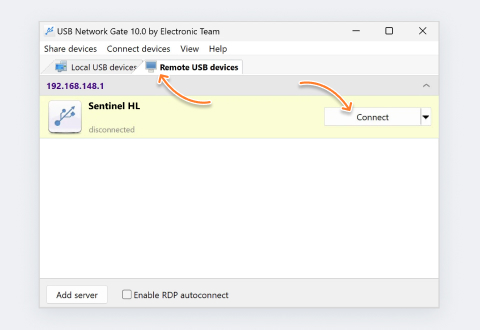
Connect using any remote client that runs USB Network Gate. Your USB printer will appear here as a local device.
You can select the Remote USB Devices tab near the top of the application window. The Connect button is to the right of each device.
Try USB Print Server Software
Connect up to 10 devices!

Comparison Table of USB Print Server Solutions

When you look for a USB print server solution, you’ll get plenty of options to choose from. But the right choice should be based on your exact needs, budget, environment, and use case. Let’s compare USB print servers side-by-side based on type, ports, platform support, pricing, remote access, ease of setup, and more.
Feature
product logo USB Network Gate
product logo StarTech
product logo SEH printserver ONE
product logo IOGEAR
product logo Digi Anywhere USB Plus
Type
Software
Hardware
Hardware
Hardware
Hardware
Ports
n/a
1 × USB 2.0
1 × USB 2.0
1 × USB 2.0
5 × USB 2.0
Number of Supported Devices
Up to 10
1
1
1
From 2 to 24
Cross‑Platform Support
Ethernet Speed
n/a
10/100 Mbps
10/100/1000 Mbps
10/100 Mbps
10/100/1000 Mbps
Protocols
TCP/IP, RDP
TCP/IP, LPD, IPP
TCP/IP, LPD, IPP
TCP/IP, LPD, IPP
USB‑over‑IP, TCP/IP
Dedicated Device Required
Internet/Remote Printing
Virtual Environment Support
VMware, Hyper‑V, Citrix
Setup Difficulty
Easy
Easy
Moderate
Easy
Moderate
Pricing
$159.95
Starts from $62.99
~$150
$49.95
Starts from $455.00
Warranty
n/a
2 years
5 years
2 years
1 year

How to Choose the Best USB Print Server

  • Ease of use: If you’re looking for a simple, easy-to-use USB print server, a hardware-based option will be better. They are always‑on, plug-and-play solutions that require minimal settings. Good options are StarTech or IOGEAR.

  • Reliability: If you prioritise reliable network printing for your enterprise environment, SEH printserver ONE is a good pick. It offers advanced security and gigabit performance, which is useful in mission‑critical settings.

  • Multi‑device support: If you want to share multiple devices or USB peripherals beyond printers, Digi AnywhereUSB Plus is a great option.

  • Flexibility: If you prefer the flexibility of software-based USB print servers, choose USB Network Gate. This universal solution needs no extra device and comes with advantages, such as built‑in WAN/Internet sharing, cross‑platform support.

Conclusion: Which USB Print Server is Better For You?

Choosing a USB Print Server, whether software or hardware, must be based on your environment and needs.

  • Choose a hardware-based USB print server if you prioritize cost-effectiveness, reliability, low maintenance, and LAN printing.
  • Choose a software-based USB print server (e.g., USB Network Gate) for higher flexibility in remote setups, support for any USB device, and virtual infrastructure.

So, figure out your network printing needs, whether you want a versatile software-based server or a simpler Ethernet adapter. This will help you choose the right USB print server solution to simplify document printing over a network.

USB Network Gate
Redirect USB devices over network
14-day Free Trial available
License price starts at $159.95
Available for