Electronic Team uses cookies to personalize your experience on our website. By continuing to use this site, you agree to our cookie policy. Click here to learn more.

USB przez Wi-Fi: jak tworzyć bezprzewodowe połączenia USB

Editorial Team Editorial Team Nov 17, 2025
Technologia USB umożliwia podłączenie do komputera wielu urządzeń peryferyjnych, takich jak dyski zewnętrzne, kamery internetowe czy drukarki. Dzięki swojej prostocie i wygodzie USB stało się standardem zarówno w domach, jak i w firmach.

Coraz więcej użytkowników chce jednak korzystać z urządzeń USB przez Wi-Fi, bez fizycznego podłączenia ich do komputera. USB przez Wi-Fi świetnie sprawdza się podczas pracy zdalnej, ogranicza bałagan kabli i pozwala współdzielić urządzenia USB między wieloma komputerami.

W tym artykule dowiesz się, jak zamienić dowolne urządzenie USB w urządzenie bezprzewodowe oraz jak tworzyć elastyczne, skalowalne połączenia USB przez Wi-Fi z wykorzystaniem sprzętu i oprogramowania.

Sprzętowe rozwiązania dla bezprzewodowych połączeń USB

Rozwiązania sprzętowe USB-over-Wi-Fi umożliwiają stworzenie łączności USB bez dostępu do Internetu i bez dodatkowego oprogramowania. Do tej kategorii należą bezprzewodowe huby USB, extendery USB, dongle oraz serwery USB oparte na Raspberry Pi.

Rozwiązania te są idealne dla osób preferujących konfiguracje plug-and-play lub konkretne, fizyczne instalacje. Najlepiej sprawdzą się u użytkowników domowych i firm stawiających na stabilność i prostotę. Oto najbardziej efektywne sprzętowe rozwiązania USB-over-Wi-Fi:

Bezprzewodowe huby USB

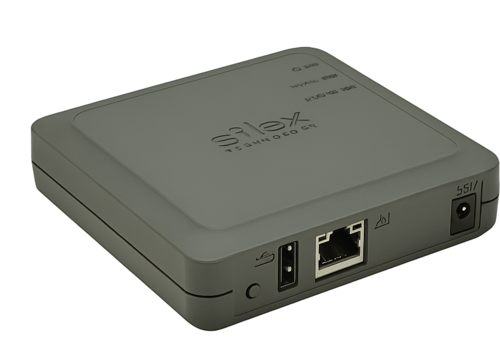
Silex DS-520AN

Bezprzewodowe huby USB umożliwiają dostęp do urządzeń USB — takich jak drukarki czy pamięci flash — z innych komputerów znajdujących się w tej samej sieci. Haby tego typu to centralne punkty USB z wbudowaną łącznością Wi-Fi.


Przykład: Silex DS-520AN


Zastosowania:


  • Współdzielenie pamięci USB między kilkoma użytkownikami
  • Bezprzewodowy dostęp do drukarki lub skanera z różnych komputerów

icon pros Pros:

  • Compatible with multiple USB devices, such as wireless USB adapters;
  • Effortless configuration (mostly plug-and-play);
  • Ideal for office environments.

icon cons Cons:

  • May need proprietary drivers or software;
  • Can be more costly compared to traditional USB hubs.
Suitable For: Wireless USB hubs are more suitable for office and home users looking to share multiple USBs over Wi-Fi.

Wi-Fi Extenders/ USB Over Ethernet

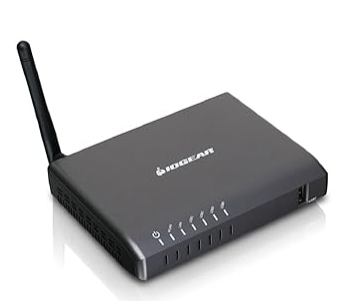
Wi-Fi extenders or USB over Ethernet are hardware devices that are also called "USB-over-IP" tools. These convert USB signals into network data moving over Wi-Fi or Ethernet to a receiver or connected device.


Example: IOGEAR GUWIP204


Use Cases: Some of the scenarios where USB wireless extenders or USB over Ethernet are used:


  • Operating USB audio equipment across rooms or floors in the same building
  • Placing a USB barcode scanner or surveillance camera away from the host computer

icon pros Zalety:

  • Suitable for connections over longer distances;
  • More reliable and safer connections.

icon cons Wady:

  • Needs additional setups or power supplies;
  • Bulky to manage.
Suitable For: Wi-Fi extenders or USB over Ethernet are more suitable for:

  • Users relying on USBs or USB connected devices to work over long distances
  • Industries with various remote peripherals
  • Offices or IT environments with reliable wired Ethernet connections

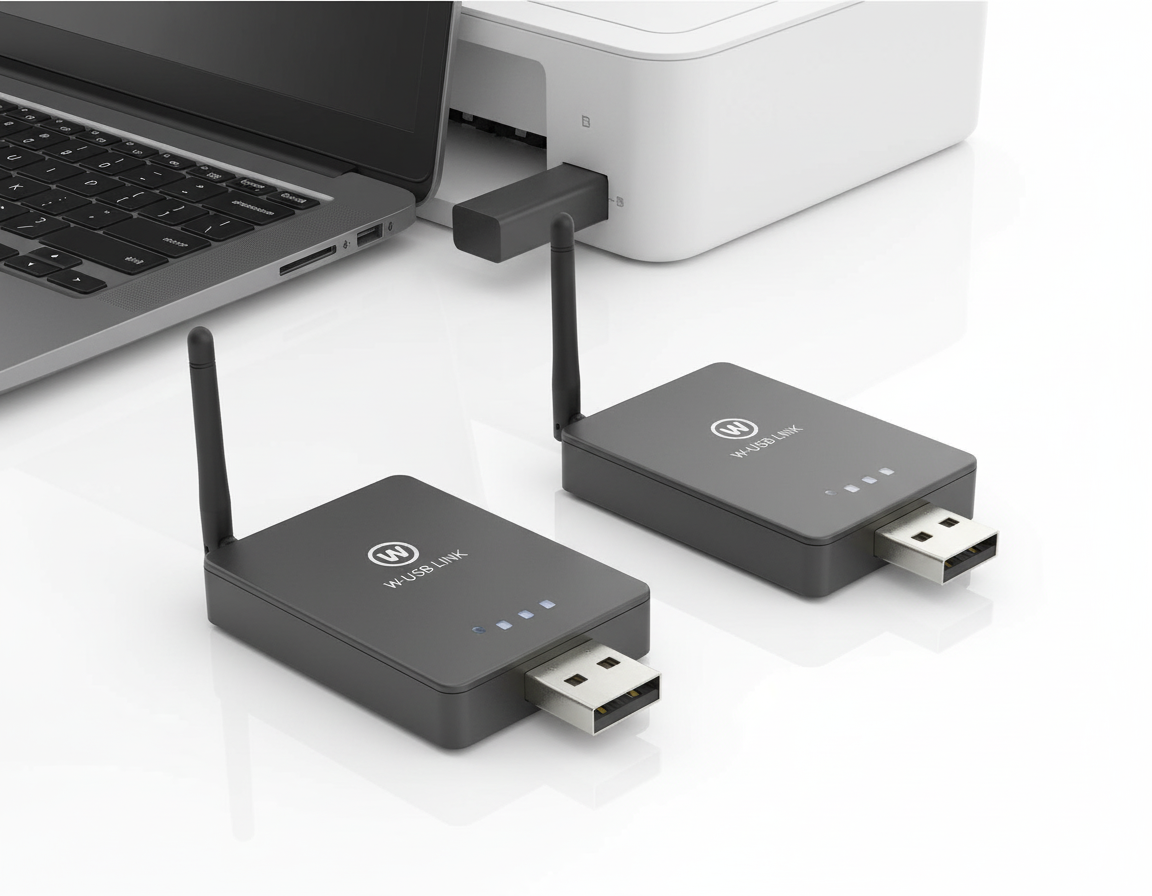
Dongles or Wireless USB Cables

The authentication of the wireless “cable” concept is a common concern among users.


When they use the term “wireless USB cable,” they usually mean something like this:


  • A USB over Wi-Fi bridge connects to a computer.
  • This connection turns the USB output into a wireless signal.
  • A secondary USB adapter on an attachable device receives this wireless signal.

The secondary bridge reconverts the wireless signal into a USB input and transfers this data to the attachable device.


Generally, it is the same USB wireless connection, but a few extra steps are required. In both scenarios, USB plugs communicate with another device—either a different piece of equipment or another USB plug—through Bluetooth signals.


Use Cases: Dongles or wireless USB cables are used in the following scenarios:


  • Using a wireless document camera in a classroom to display images or objects in high resolution
  • Connecting a USB webcam in a room wirelessly

icon pros Zalety:

  • Simple and cable-free solution;
  • Requires no additional network setup.

icon cons Wady:

  • Short range;
  • Harder to find as many of them as are discontinued;
  • Supports one device only.
Suitable For: Dongles or wireless USB cables are more suitable for individuals looking to get rid of a single USB cable to connect nearby devices.

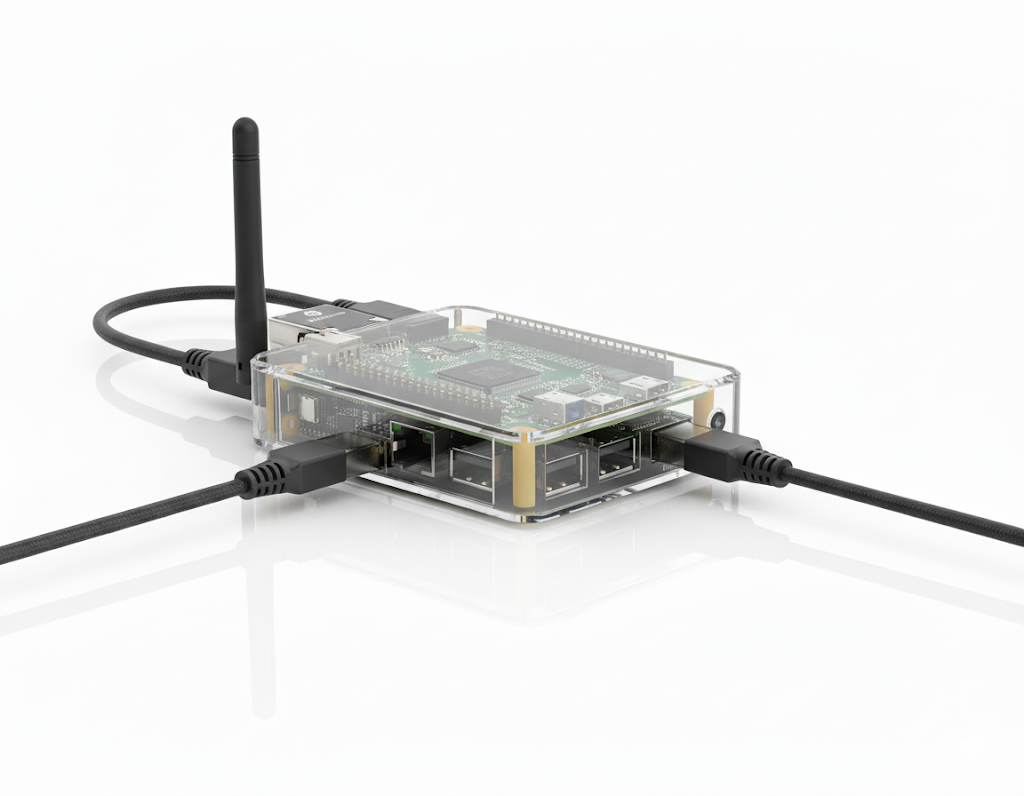
Raspberry Pi USB Server (USB/IP)

It’s a do-it-yourself (DIY) method of creating wireless remote connections, such as establishing wireless USB to USB connections. In this method, the user needs to use a Raspberry Pi as a USB-over-network server. You will need to plug your USB devices into the Pi and share them over Wi-Fi via USB/IP protocols.


You can convert your Raspberry Pi into a USB over Ethernet server using a simple Linux toolset.


Note: It supports only Linux.


Use Cases: Raspberry Pi USB server is used in the following cases:


  • Using USB devices or remote sensors in a smart home project
  • Sharing a wireless USB hard drive in a home setup

icon pros Zalety:

  • Easy to customize;
  • Flexible to use;
  • Cost-efficient.

icon cons Wady:

  • Consumes significant setup time;
  • Requires you to have deep technical knowledge to set up and use.
Suitable For: Raspberry Pi is ideal for:

  • Developers or remote labs looking for a flexible way to access USB devices
  • Tech-savvy users familiar with Linux and networking concepts
  • Budget-conscious users wanting a customized experience

Software-Based Solutions for Wireless USB Connections

Software-based solutions provide greater convenience for users who need remote access, flexibility without relying much on hardware. These applications allow you to access multiple USB devices globally or across local networks and share data over the internet. You get security and advanced functionality for home usage, such as accessing studio hardware from home, or professional usage, such as managing systems remotely.

Here are different software options you can try when creating wireless USB connections or USB-over-Wi-Fi.

Using a USB Network Gate to Create Wireless USB Connections

These software solutions help develop wireless USB connections. So, you can make your USB devices accessible to any network-connected machine. You can also share your equipment with remote users anywhere in the world. The USB over Ethernet software, for example, allows users to access a device at once without additional hardware or cabling.

Try USB over WiFi software now
Connect up to 10 devices!

Use Cases: Software-based wireless USB connections are useful in these scenarios:

  • To access a security key or a USB license dongle from a remote PC.
  • To share drives, printers, and webcams in a remote support session.
ung
Connect any device wirelessly with USB Network Gate solutions

icon pros Pros:

  • Easy to set up and use;
  • Supports remote or cloud setups;
  • Compatible with macOS, Linux, and Windows.

icon cons Cons:

  • You’ll need to install the software on both the host and the client devices.

Suitable For: Software-based wireless USB transmitters are ideal for cross-platform users, IT professionals, support teams, and remote workers.

3 Steps to Create Wireless USB Connections

Follow the steps below to create a wireless USB connection:
1
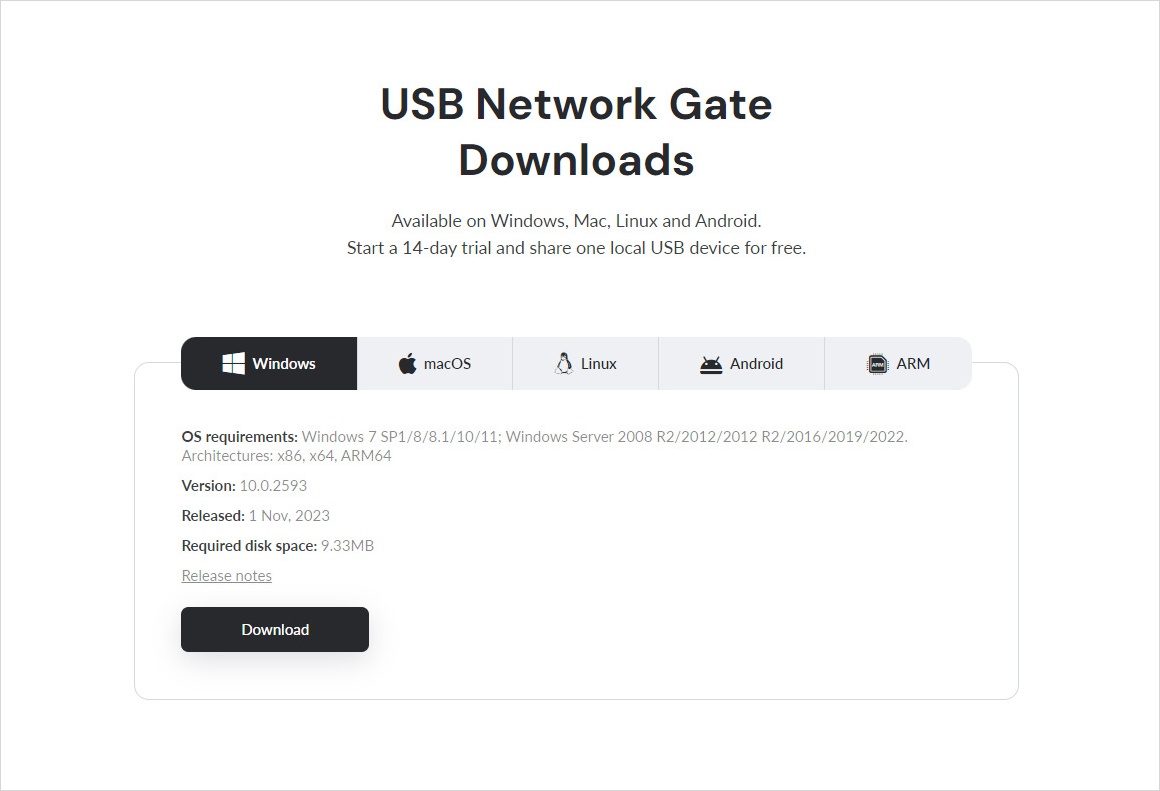
Install USB Network Gate on all computers that are going to participate in connection. I.e. on a server where a USB device will be physically present and on clients that you are going to access USB over Wi-Fi from.
 Download USB Network Gate
2
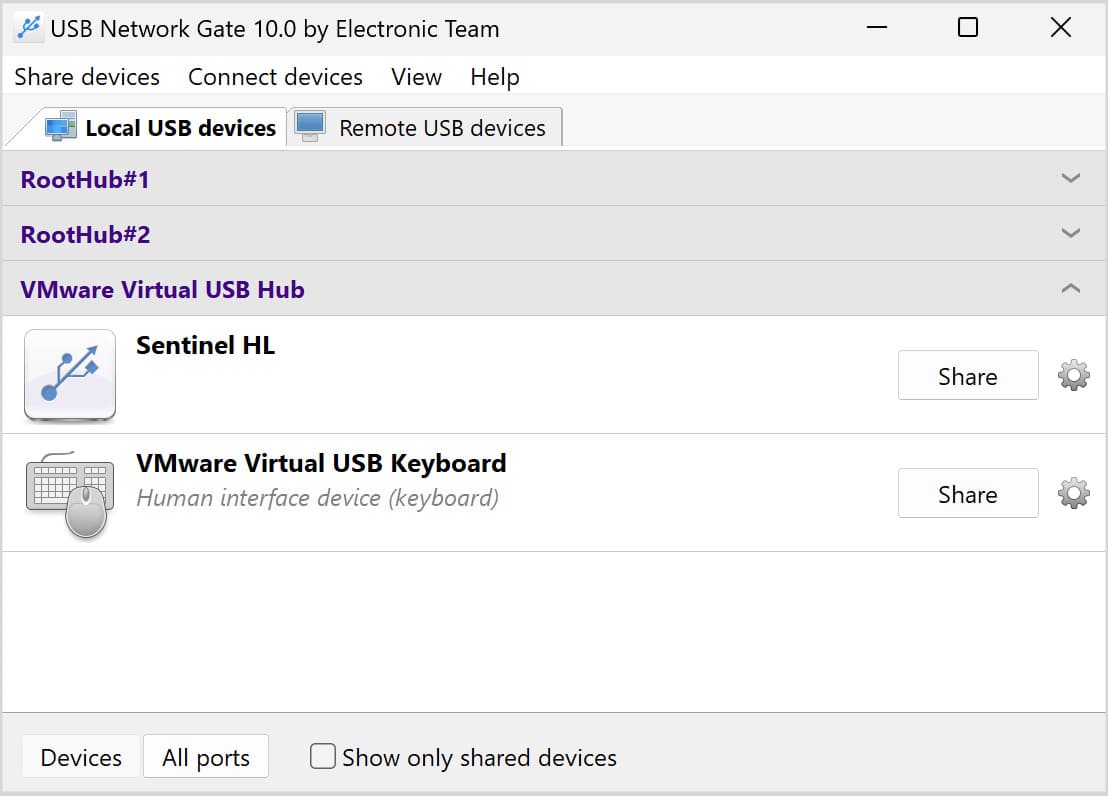
Plug the USB device into a server computer and share it using a USB Network Gate.
 Share USB device over wifi network
3
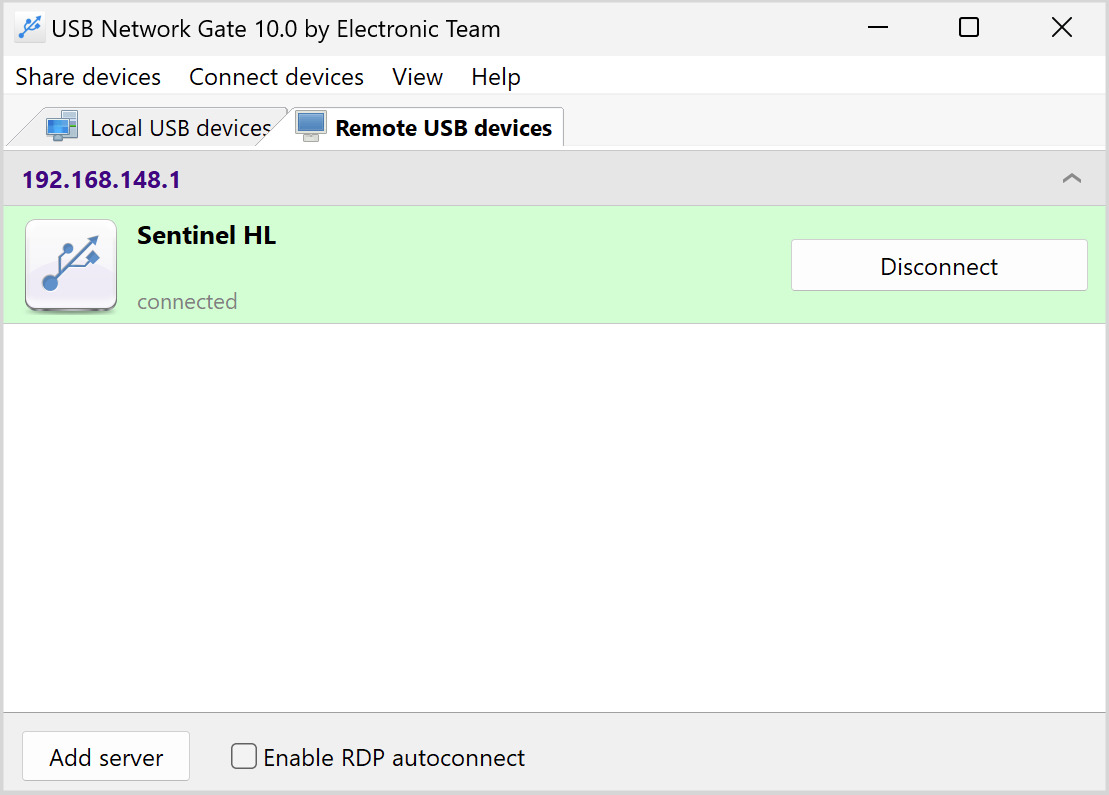
Connect to the shared device from any client computer over a Wi-Fi network. After that the device shared on a server will appear in Device Manager of the remote client and all programs will treat this device as if it was directly connected to it.
 Connect to the shared USB device

Using FlexiHub to Share USB over Wi-Fi

FlexiHub is another software option that offers a simplified method of sharing USB devices over Wi-Fi. It is a flexible tool for connecting and sharing different USB devices, including hard drives, printers, scanners, and USB dongles. Moreover, FlexiHub can transform your workspace into a kind of software-based USB hub since it clears up the cluttered wires around your computer.

Use Cases: FlexiHub is handy in various use cases:

  • To connect to a serial port device (e.g., a CNC machine) over Wi-Fi
  • To share a MIDI device or a USB audio interface from your studio with a collaborator
  • To access a USB security dongle remotely from another office, region, or country

icon pros Pros:

  • Cross-platform support across macOS, Windows, Android, and Linux;
  • Supports USBs as well as serial devices;
  • Works over both, local network and the internet;
  • Connection security with SSL encryption.

icon cons Cons:

  • Subscription-based (monthly/yearly cost);
  • Requires internet for full functionality (unlike LAN-only tools).

Suitable For:

  • Professionals needing cloud-level remote USB access;
  • Teams or businesses with remote infrastructure;
  • Anyone who needs to access USB or serial devices from far away, securely.

How to Connect USB Devices Wirelessly with FlexiHub

1
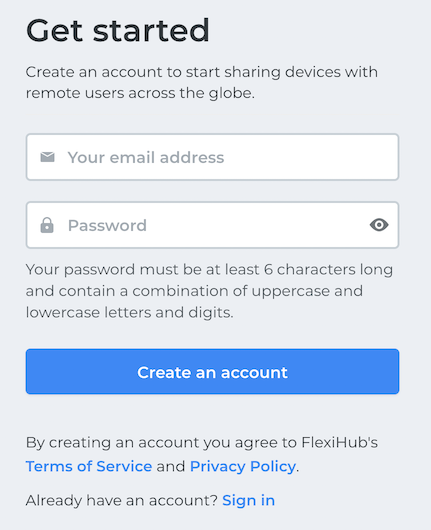
Go to the FlexiHub website and create an account for free. Turn the demo mode on if you need to expand USB over Wi-Fi.
 create an account
2
Download and install the FlexiHub app on all the PCs involved in the connection. These machines will act as Wi-Fi USB hubs.
3
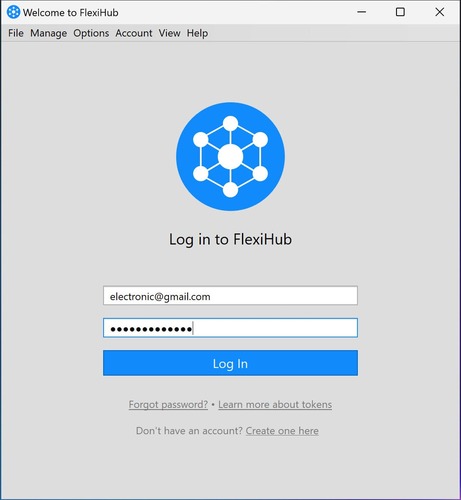
Open the app on the local and remote computers and log in to your account.
 Start a Flexihub demo
4
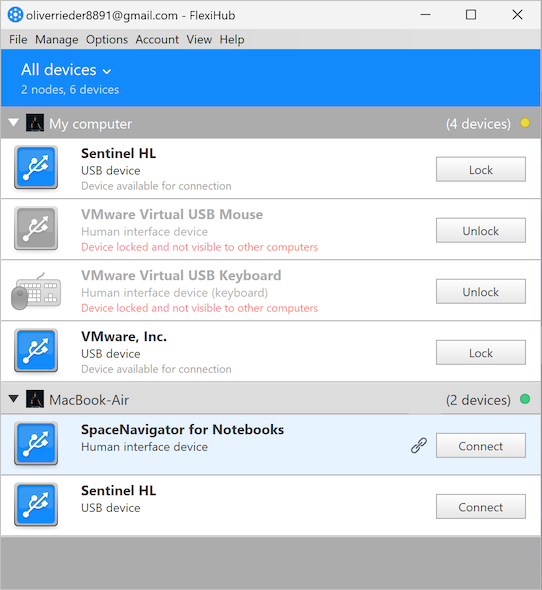
On the remote PC, go to the connected devices list. Then, search for your chosen USB device and click the “Connect” button beside it.
 Share USB device over wifi

What’s the Best USB-Over-Wi-Fi Solution: Software-Based USB-over-Wi-Fi

Both software and hardware-based solutions are useful for creating wireless USB connections, each with its own set of pros and cons. But software-based USB-over-Wi-Fi solutions are better if you are looking for a more secure, scalable, and flexible option.

Why Software-Based Solutions Win

Let’s talk about the reasons that make software-based USB-over-Wi-Fi solutions better:

  • Easy to set up:
    You can download and install the software without hassles and establish a connection in minutes. It requires no cables or extra tools.

  • Advanced Flexibility provides remote access to USB devices:
    In comparison to physical solutions, USB over WiFi software options frequently offer a much wider range of device compatibility. You can easily apply a USB over wireless network method with any device, including tablets, scanners, 3D printers, and more. You can link them in just minutes as opposed to an analog-wired connection, which might require more time and effort.

  • Cross-platform:
    Software solutions work with major operating systems and devices, such as macOS, Windows, Android, Linux, virtual machines, and more.

  • Remote access:
    Usually, USB over wireless software provides remote access to USB devices. That means users can access and employ USB peripherals with an internet connection, regardless of geographical location. It is something that may not be possible with hardware solutions.

  • Security:
    Software-based solutions come with features, such as SSL encryption, 2-factor authentication (2FA), secure cloud access, etc., to safeguard you from digital threats.

  • Scalability:
    These solutions scale easily; you can add or remove users and devices without having to buy more hardware. This saves you money and offers convenience.

  • Automatic updates:
    Software-based USB-over-Wi-Fi solutions get updated automatically with new OS versions and devices.

When It Makes Sense to Use Hardware-Based USB-over-Wi-Fi

Use hardware-based wireless USB connections in the following scenarios:

  • If you are a non-technical user looking for a plug-and-play solution
  • If you work in an air-gapped environment or offline
  • Users in fixed or industrial setups with limited internet connectivity

Verdict

If you prioritize remote access, flexibility, and scalability, use software-based USB-over-Wi-Fi (e.g., FlexiHub or USB Network Gate).

But if you need an offline, ultra-secure, and local setup, go for hardware-based wireless USB connections.

USB Network Gate
Przekierowuj urządzenia USB przez sieć
Dostępny 14-dniowy bezpłatny okres próbny
Cena licencji zaczyna się od $159.95
Dostępne dla