Electronic Team uses cookies to personalize your experience on our website. By continuing to use this site, you agree to our cookie policy. Click here to learn more.

How to Use a 3D Mouse over Remote Desktop

Editorial Team Editorial Team Apr 14, 2026

Users often encounter challenges when using a 3D mouse over a Remote Desktop (RDP) connection. Legacy Microsoft USB redirection methods may be less predictable with some modern Windows environments and device types. In practice, advanced HID devices such as 3D mice often require additional configuration, and results can vary depending on the Windows build, drivers, and remote desktop setup.

This guide examines two ways to use a 3D mouse over remote desktop connections. The first method is third-party USB redirection software that supports cross-platform compatibility across Windows, Linux, and macOS. We also look at using RemoteFX for older Windows versions, where the solution still works despite some limitations.

We’ll discuss the pros and cons of each solution and show you how to set them up.


Table of contents:

  1. Why Doesn’t a 3D Mouse Work by Default in RDP
  2. Method 1: Third-Party USB Redirection Software (USB Network Gate)
  3. Method 2: Access a 3D Mouse Over RDP With RemoteFX USB Redirection
  4. Comparison Table: USB Network Gate vs. Microsoft’s Built-In USB Redirection over RDP
  5. Conclusion
  6. FAQ

Why Doesn’t a 3D Mouse Work by Default in RDP

Microsoft Remote Desktop Protocol (RDP) supports basic device classes, such as standard mice and keyboards. However, it does not fully preserve the custom HID profiles and vendor-specific drivers required by 3D mice, which is why devices like the 3Dconnexion SpaceMouse cannot function correctly over a remote desktop session.

RDP can redirect USB devices using either high-level input redirection or low-level (opaque) USB redirection. However, without proper driver handling on the remote system, a 3D mouse may not appear in the session or may lose key capabilities such as six degrees of freedom (6-DoF), which distinguishes it from a standard mouse. Advanced features like button mappings, application profiles, and custom axis data are also unavailable.

3D mice rely on multi-axis input and vendor-specific drivers, so full functionality requires the remote system to recognize the device as a native USB device rather than a translated input stream.

The two main solutions for using a 3Dconnexion SpaceMouse over a remote desktop are third-party USB-over-network tools and Microsoft’s native RemoteFX USB redirection. The choice depends on the OS compatibility outlined below.

Which method should you use?

Microsoft’s built-in USB redirection over RDP is Windows-based and can be less predictable with advanced USB devices on some modern systems.

Environment Recommended Method Notes
Modern Windows (11, Server 2022+) Third-party USB-over-network tools Reliable, full functionality
Older environments RemoteFX USB redirection (with limitations) Legacy, may require configuration


If you use a non-Windows client or need the most consistent cross-platform experience, start with Method 1. If both ends of the connection are Windows and your environment allows RDP USB redirection, you can also test Microsoft’s built-in method, but compatibility with advanced 3D mouse features may vary.

Method 1: Third-Party USB Redirection Software (USB Network Gate)

A specialized USB to Remote Desktop software like USB Network Gate solves the problem of unreliable RemoteFX USB Redirection for using a 3D mouse over RDP. The application is designed to work with a wide range of USB devices and is available for Windows, macOS, Linux, and Android. USB Network Gate establishes a dedicated TCP/IP tunnel, eliminating reliance on RDP’s USB channel. The tunnel forwards USB device communication over TCP/IP so the 3Dconnexion driver can operate on the remote machine as if the device were locally connected.

Try USB over RDP app now
Free version available

Advantages

  • Works seamlessly on Windows 10, 11, and Server 2016–2025
  • Cross-platform support for Linux and macOS clients
  • Data encryption for secure data transmission
  • Enables native 3Dconnexion driver functionality on the remote host
  • Free version is available

Limitations

  • Software installation on both machines is required
  • Paid software with a one-time payment of $159.95 after a 14-day trial
  • May introduce slight latency over a WAN

How to Use USB Network Gate to Forward a 3D Mouse to RDP

1
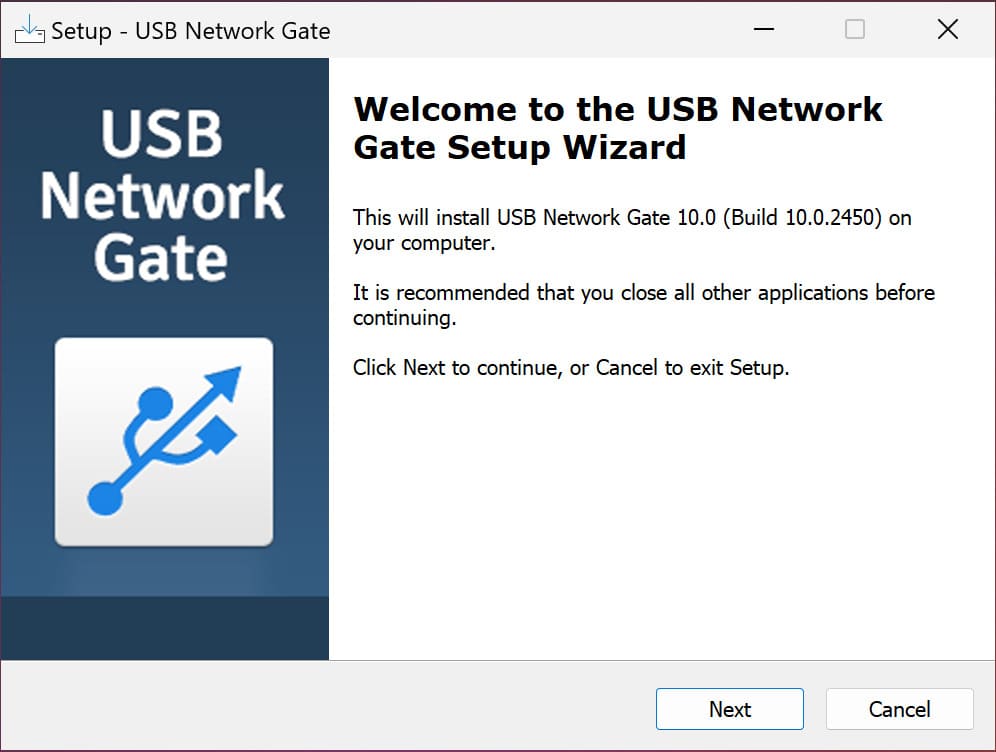
Download and install the software on both the machine that needs remote access to the 3D mouse over RDP and the host machine, which should have the mouse connected with a USB cable.
 download and install usb network gate
2
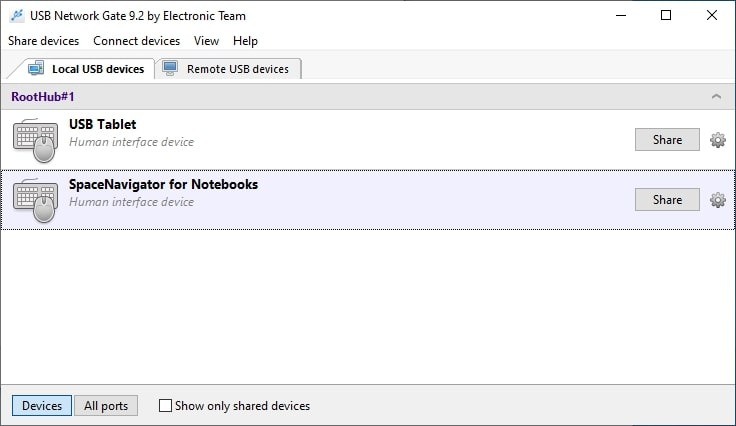
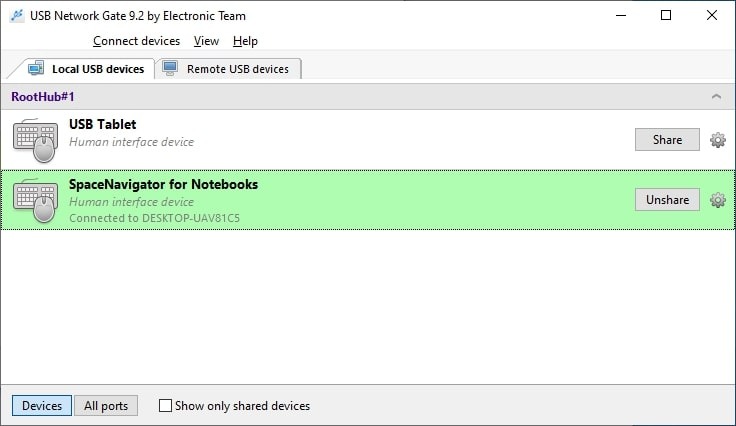
Launch the application on the machine physically connected to the 3D mouse and open the Local USB Devices tab. Locate the mouse on the device list and click the Share button next to its name.
 launch usb network gate on rdp server
3
Connect to your remote virtual desktop with RDP.
 Connect
4
Start USB Network Gate on the virtual machine and open the Remote USB devices tab.
5
Locate the mouse you want to access and click Connect.

Following is a short video guide on how to use USB Network Gate to make a 3D mouse available for remote access in an RDP session.

 video guide

Method 2: Access a 3D Mouse Over RDP With Microsoft’s Built-In USB Redirection

Microsoft's RemoteFX USB Redirection is a native Windows feature that enables the redirection of USB devices, such as a 3D mouse, over an RDP connection. It is now essentially a legacy feature. It is considered a legacy feature and is not recommended for modern Windows environments. We will examine the solution’s system requirements, how to enable it, and the limitations that may make it a poor choice for your use case.

RemoteFX USB Redirection system requirements

  1. Host Requirements

    ⚬ Windows 10 or Windows Server 2016 (or earlier) must be running on the host machine. Windows Server 2019 and later versions have reduced support for RemoteFX features, such as RemoteFX vGPU, which may impact the functionality and reliability of USB redirection. When using virtual machines, the hypervisor must run on Windows Server 2016 or earlier to ensure USB redirection support.

  2. Client Requirements

    ⚬ Windows 10 or Windows 11 (pre-24H2) with Remote Desktop Connection (RDC) 8.1 or later.

    ⚬ Enable RemoteFX in the RDP client settings. In recent Windows versions, it may be unavailable or require additional configuration depending on system policies.

  3. Network Requirements

    ⚬ A low-latency and reliable connection is needed to minimize delays and avoid instability.

How to Enable RemoteFX USB Redirection in Group Policy

1
On the Client Machine
  • Open the Local Group Policy Editor (gpedit.msc).
 group policy-app
2
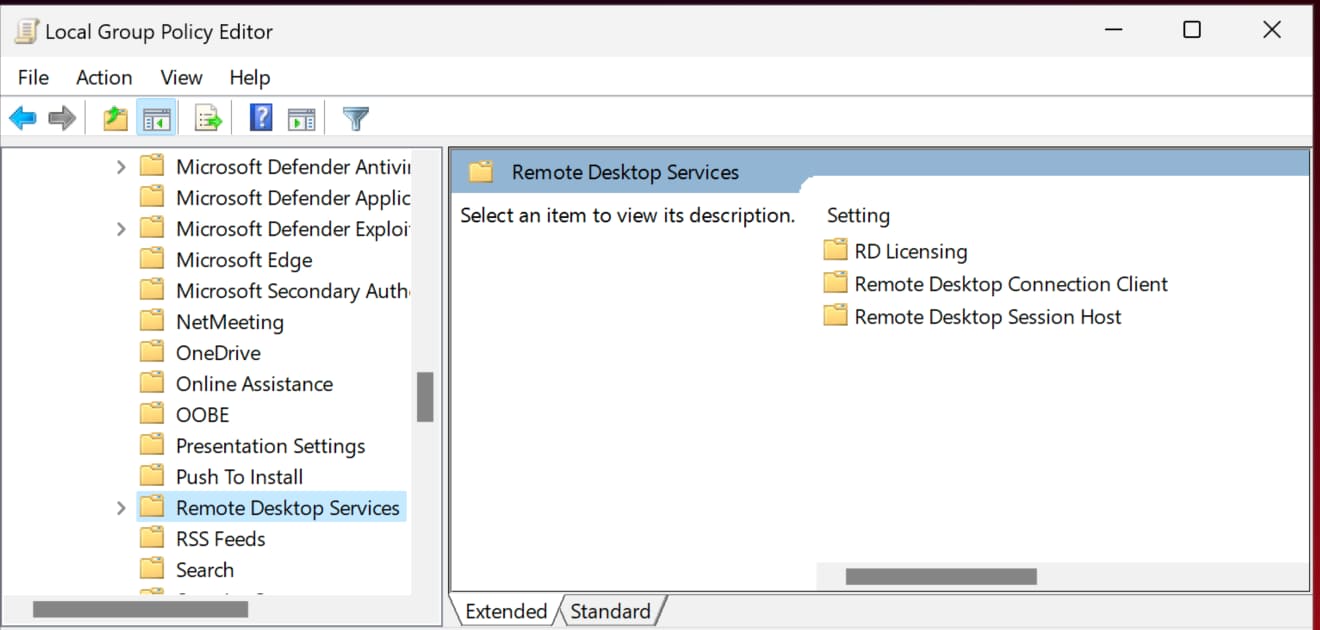
Navigate to:
Computer Configuration > Administrative Templates > Windows Components > Remote Desktop Services > Remote Desktop Connection Client
 remote desktop services
3
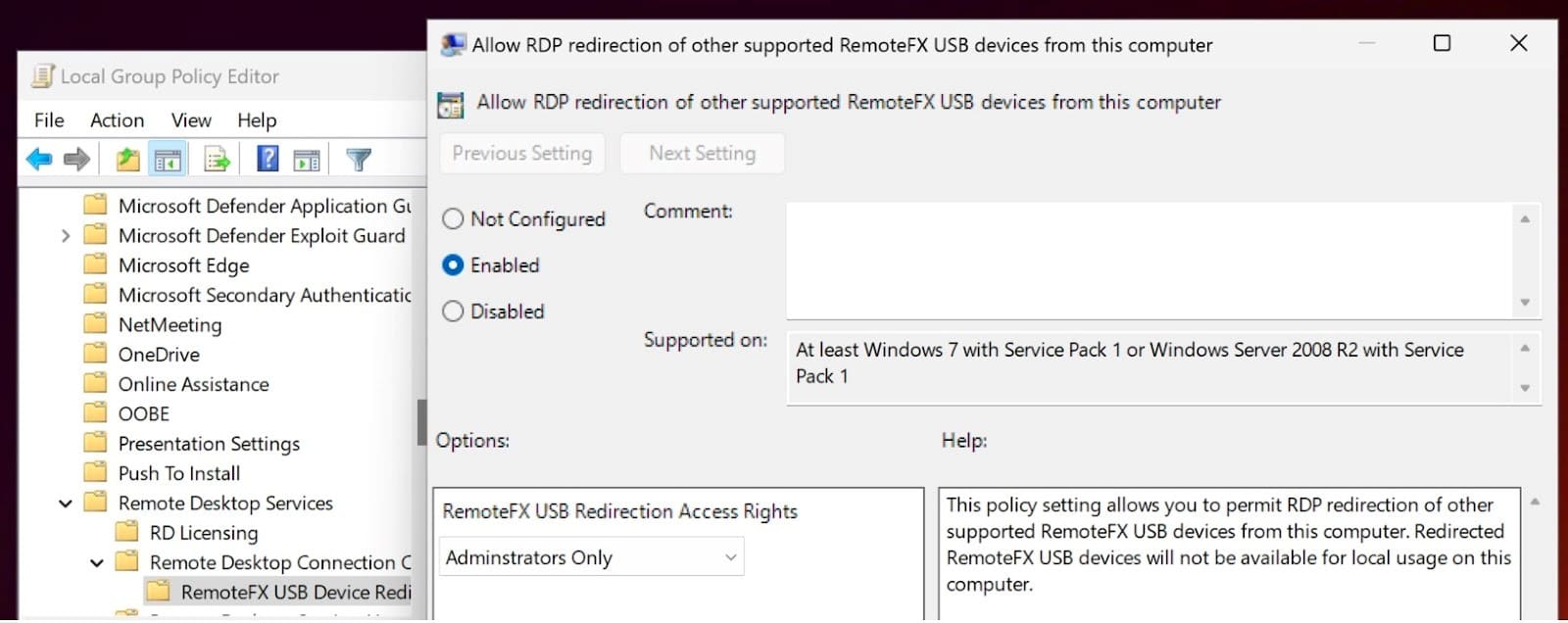
Set "Allow RDP redirection of other supported RemoteFX USB devices" to Enabled.
 RemoteFX USB systems enable
4
On the Host Machine (RDP Server):

• Enable Remote Desktop and open the Group Policy Editor.
• Navigate to:
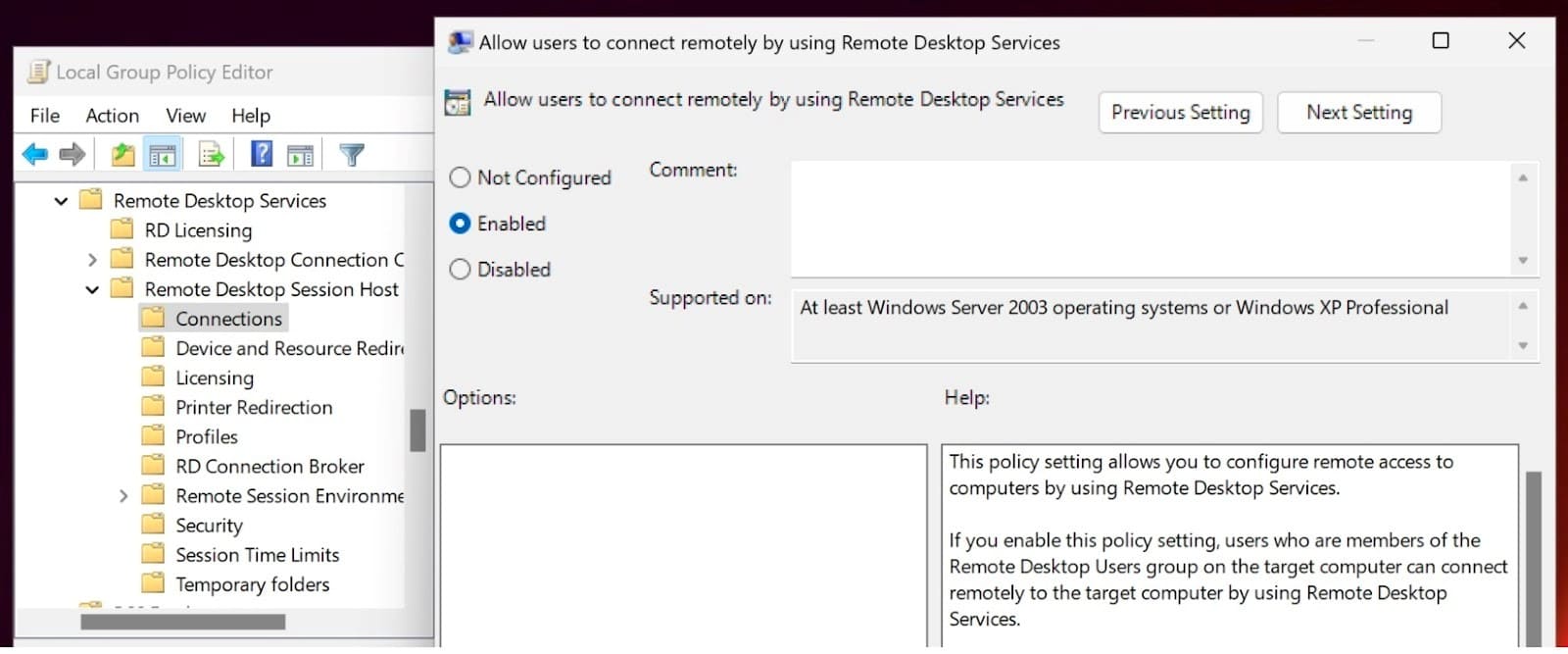
Computer Configuration > Administrative Templates > Windows Components > Remote Desktop Services > Remote Desktop Session Host > Device and Resource Redirection
• Set "Do not allow supported Plug and Play device redirection" to Disabled to allow USB device redirection.
 Remote Desktop Services enable
5
Start the RDP Session:

• Open the RDP client (mstsc.exe) and start the remote session.
• Click More under the Local Resources tab and expand the Other supported RemoteFX USB devices section.
• Select the 3D mouse and connect to the remote machine to establish device redirection for the entire session.

Key RemoteFX USB Redirection Limitations

  1. RemoteFX may not fully support advanced 3D mouse features such as six degrees of freedom (6DoF) motion control. Basic functionality, such as mouse movement, may work, but some advanced features may be unavailable. This issue primarily impacts users of CAD software.
  2. RemoteFX does not support wireless 3D mice. These devices must be connected directly to the client with a USB cable.

Comparison Table: USB Network Gate vs. Microsoft’s Built-In USB Redirection over RDP

Feature / Aspect USB Network Gate RemoteFX USB Redirection
Type Third-party USB redirection software Built-in Windows feature
Setup Complexity Simple, guided installation featuring a user-friendly interface Requires manual configuration through the Group Policy Editor
Device Compatibility Designed to support a broad range of USB devices, including 3D mice Limited device support for 3D mice and complex devices
Wireless Device Support Yes No
Performance and Stability Optimized for performance and stability, even over a WAN May experience lag or limited control options
Multi-User Environment Support Includes device isolation so that you can hide a 3D mouse from other sessions No device isolation
Best For Users who need reliable and flexible USB redirection for 3D mice Users who want a Windows-native solution for basic 3D mouse access

Conclusion

Microsoft’s older “RemoteFX USB devices” wording remains part of some RDP configuration paths, but built-in USB redirection can be less predictable for advanced devices such as 3D mice than purpose-built USB-over-network tools. USB Network Gate offers a reliable and future-proof USB-over-IP solution for redirecting devices such as 3D mice. It is a cross-platform, third-party tool supporting all operating systems and USB devices. The software is designed to preserve advanced 3D mouse functionality more effectively than standard RDP input redirection in many environments.

Users should choose USB Network Gate if they:

  • Are running Windows 11, Windows Server 2019 and above, Linux, or macOS;
  • Need the advanced features of 3D mice or a flexible tool for a multi-platform environment.

Users should select RemoteFX only under these conditions:

  • Windows 10 is on the client and host, or the host is Windows Server 2016;
  • You are unable to install third-party software in your environment and can tolerate the limitations of 3D mouse support.

USB Network Gate is the most flexible and reliable solution for remote 3D mouse support for modern operating systems. Users should only choose RemoteFX for legacy systems.

FAQ

A 3D mouse may not work correctly on RDP for several reasons.
• The 3Dconnexion driver may not be installed on the remote client.
• RemoteFX may not support advanced functions for 3D mice and does not support wireless devices.
• You may be experiencing connectivity problems that require a more stable network and connection configuration. USB Network Gate provides greater stability than RemoteFX.
Using a 3Dconnexion SpaceMouse over Remote Desktop requires installing the 3Dconnexion driver on both the local and remote computers. When using RemoteFX USB Redirection, ensure these two machines support the Windows-native feature. RemoteFX does not support wireless 3D mice.A third-party USB redirection solution such as USB Network Gate supports major desktop operating systems and is designed to work with a broad range of USB devices, including 3D mice.
logo USB Network Gate
#1 at Networking
USB Network Gate
Share USB over Ethernet on Windows
4.7 rank based on 372 + users